How I Edit Videos From My Phone With Codex
BUILDS · ISSUE #125
Prefer to watch? See the full video walkthrough.
Yesterday, I was giving an AI editor instructions from my phone between sets of kettlebell swings.
I’d watch a version, tell Codex what I wanted changed, and get back to my workout while the next edit took shape.
If you’re a busy creative or business owner, you know how easily editing takes over the time you meant to spend recording, running your business, or doing anything else.
This guide is for you if you want more control over your videos, you’re curious enough about AI to learn a new workflow, and you don’t want to build an editing team to get started.
You will need some patience for the first setup. If you’re happy handing everything to an existing team, there’s less reason to change how you work.
What you’ll be able to do
By the end, you’ll have a way to keep an edit moving without staying at your desk:
- Give feedback in your own words instead of spending your evening adjusting every cut.
- Watch and compare versions from your phone whenever you have a few minutes.
- Choose the captions, pace, and visuals you like before the full edit goes further.
- Keep control of the finished video without hiring a team to handle every change.
The only three tools in this setup
You don’t need a giant editing stack. This workflow uses three tools:
- Codex is where you describe the edit, review each version, and request changes in plain language.
- Hyperframes does the video work: the cuts, captions, graphics, and visual treatment.
- Cloudflare keeps the smaller review videos online and gives you a page to watch them from your phone.
Your phone is the control surface. The computer still runs the editing task, while you give direction and review the result from wherever you are.
Set up remote control before you leave your laptop
This part is essential. Cloudflare keeps the review page and video online, but the service does not wake your computer or send instructions to Codex by itself.
In Codex, open Settings, search for Remote, and open Connections. Under Control this Mac, turn on Allow connections. Use Add to pair your phone, then approve the connection on the phone.
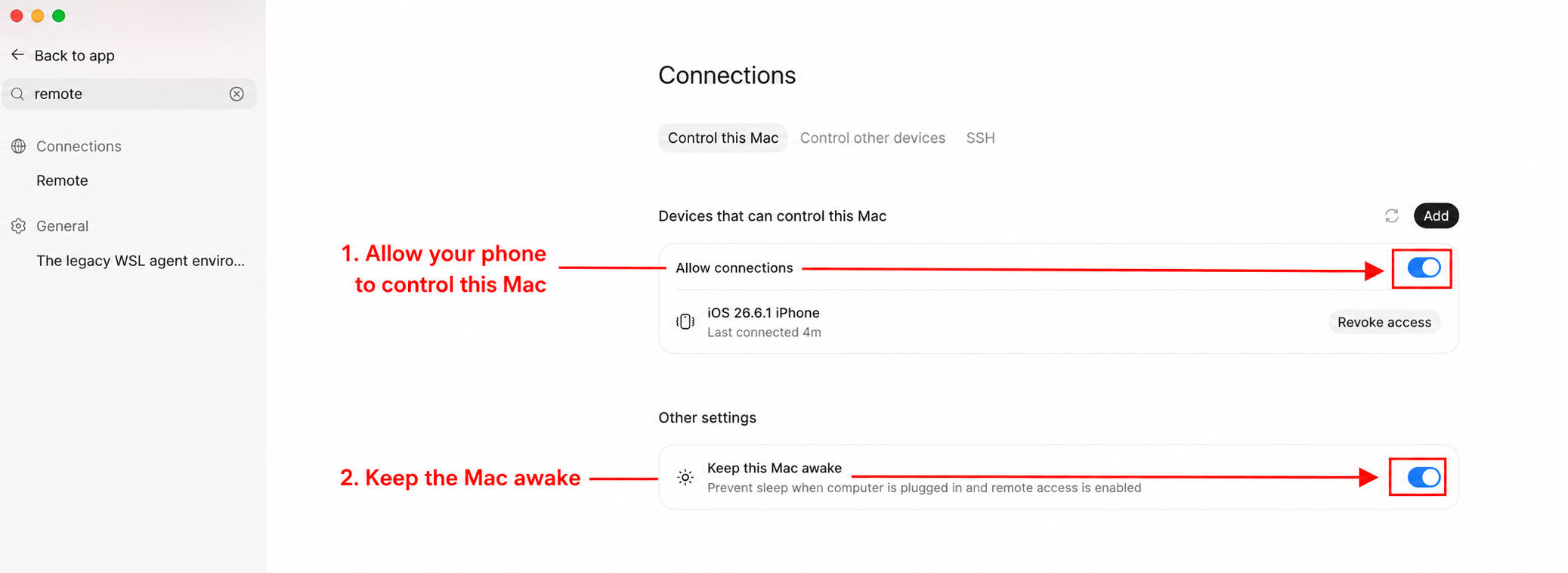
Turn on both settings: let your phone control the Mac, then keep the Mac awake while the Mac stays plugged in.
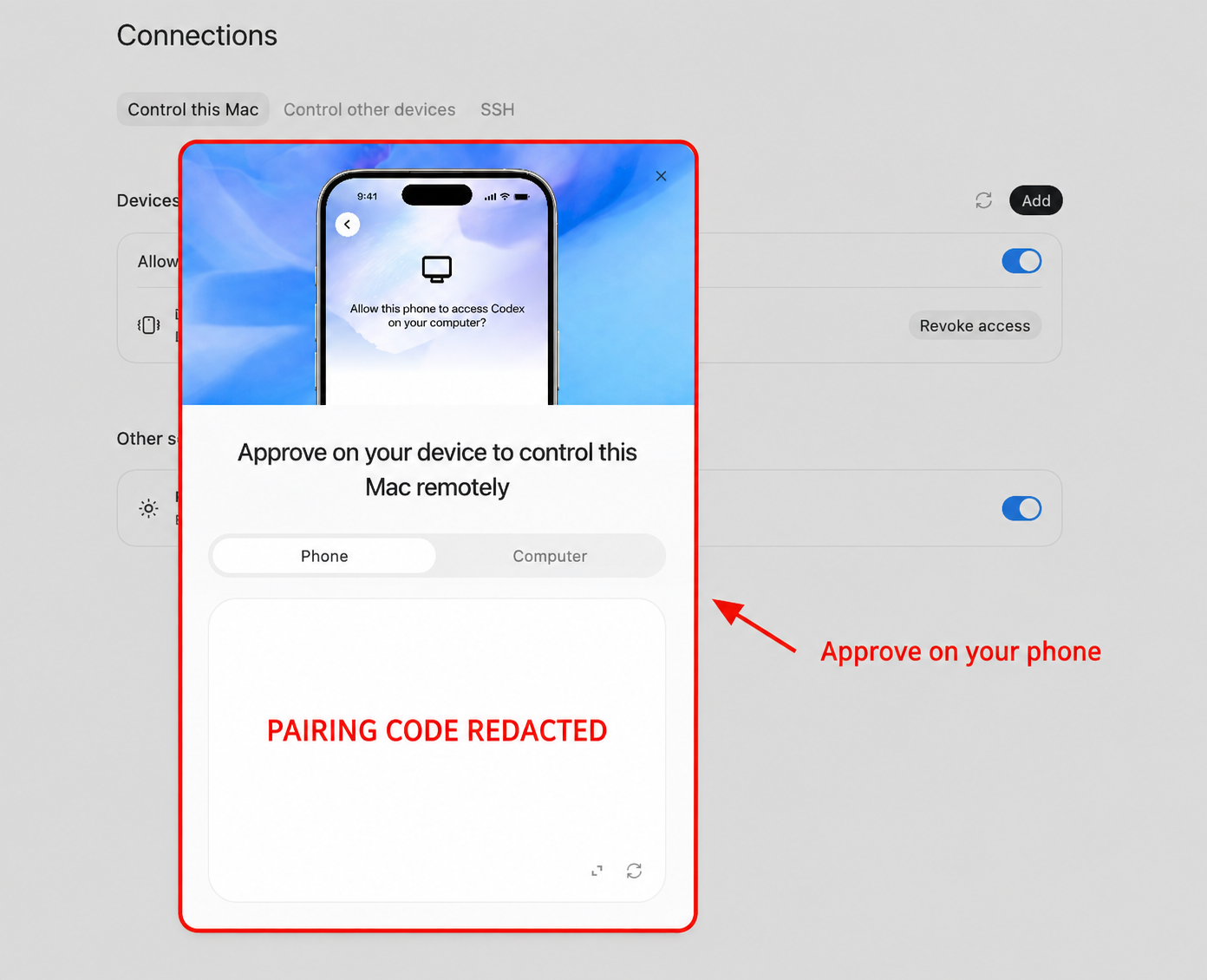
Approve the connection on your phone. Never publish or share your real pairing code.
Leave the laptop open, plugged in, connected to the internet, and awake while you are away. If the computer sleeps, shuts down, loses its connection, or the Codex task stops, the phone review page still opens, but no new edit will happen in the background. Test the connection before you walk away.
What the phone review page looks like
This is the page Codex builds for you. You open one link on your phone, watch the current edit, read the notes, and choose whether the version is ready or needs changes. The Copy decisions button gives you a clean handoff back to the Codex task.
The review page is where you watch and respond. The editing still happens on the computer through Hyperframes, while Cloudflare keeps the page and review copy available online.
See the editing walkthrough
If you want to see what the actual editing process looks like before setting up the review page, watch this walkthrough of editing videos with Codex and Hyperframes. The video starts at the part where the editing workflow becomes visible.
What happens when you ask for a change
Your computer runs Codex and Hyperframes. Your phone is where you give directions and watch the results.
Cloudflare keeps the review page and uploaded videos online, so you don’t have to sit beside the computer to play them.
Cloudflare calls its file storage R2. A bucket is a named container for your files, much like a top-level folder. An object is simply a file inside the bucket.
The small website you open on your phone lives on Cloudflare Pages. When you press Play, your browser loads the video from R2.
Uploading a video to Cloudflare doesn’t edit the footage. You’ll first need Codex working with your footage, plus a way to send instructions to the running task from your phone. Keep the editing computer awake while the task runs.
1. Start with one video and tell Codex what you like
Start at your computer. Give Codex a short recording you own, then describe how you want the edit to feel.
For example:
Help me edit this talking-head video. Remove clear mistakes and long pauses, but preserve my words and natural delivery. Show me the clean cut first. Once I approve the clean cut, show me the proposed captions and visuals before rendering the full edit. Ask me for an example if you need to understand my style.
If you already have captions, colors, or an edit you love, share those too. Specific feedback gives Codex a better starting point than “make this engaging.”
2. Give your previews a place online
Sign in at Cloudflare. Search for R2, open R2 Object Storage, and finish the R2 activation if prompted, including the billing setup shown in your account.
Choose Create bucket and give the bucket a name such as your-name-video-reviews. Leave the location on Automatic and choose Standard storage, then select Create bucket.
Standard includes the free storage allowance. You don’t need Infrequent Access for drafts you’re watching and changing.
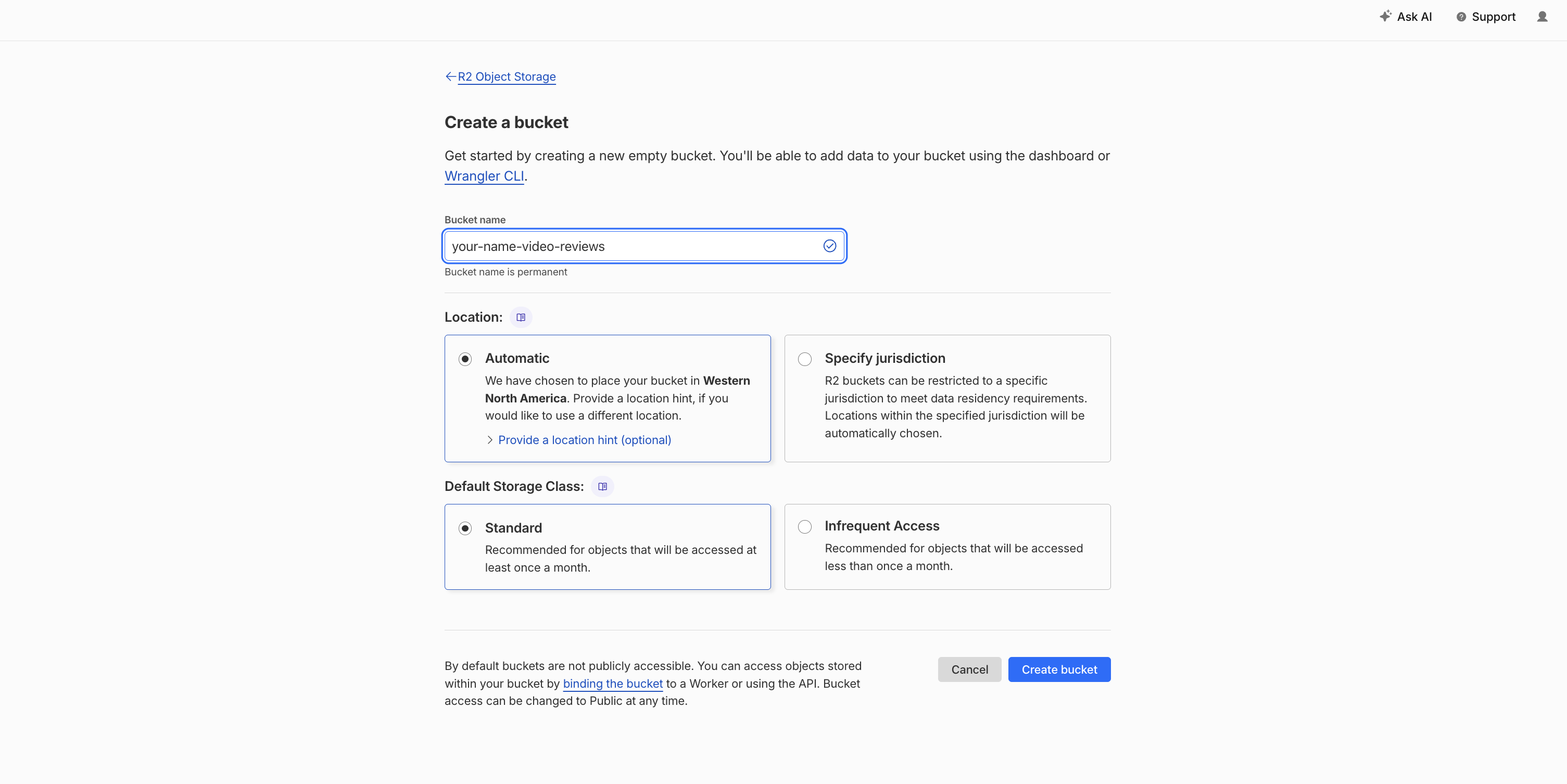
Name your video folder, keep Automatic selected, and choose Standard. The name stays fixed after creation.
For my simple review setup, I enabled a Public Development URL under the bucket’s Settings, then copied the bucket URL for Codex.
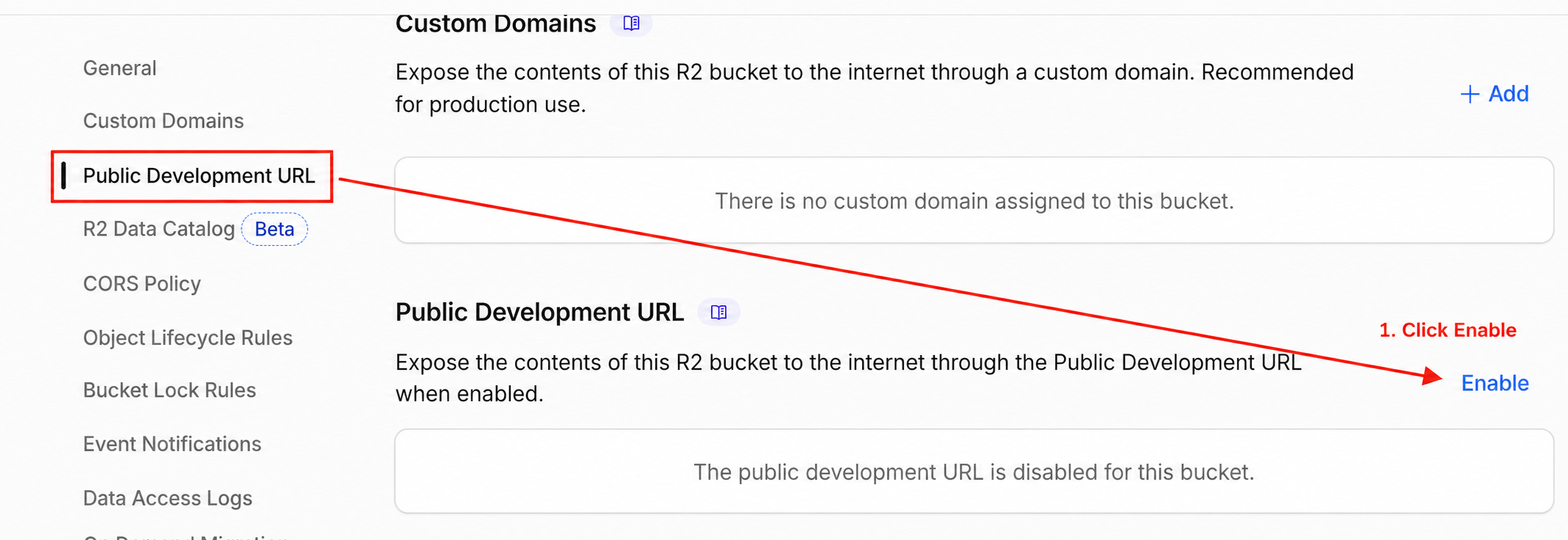
Open Public Development URL, then click Enable.
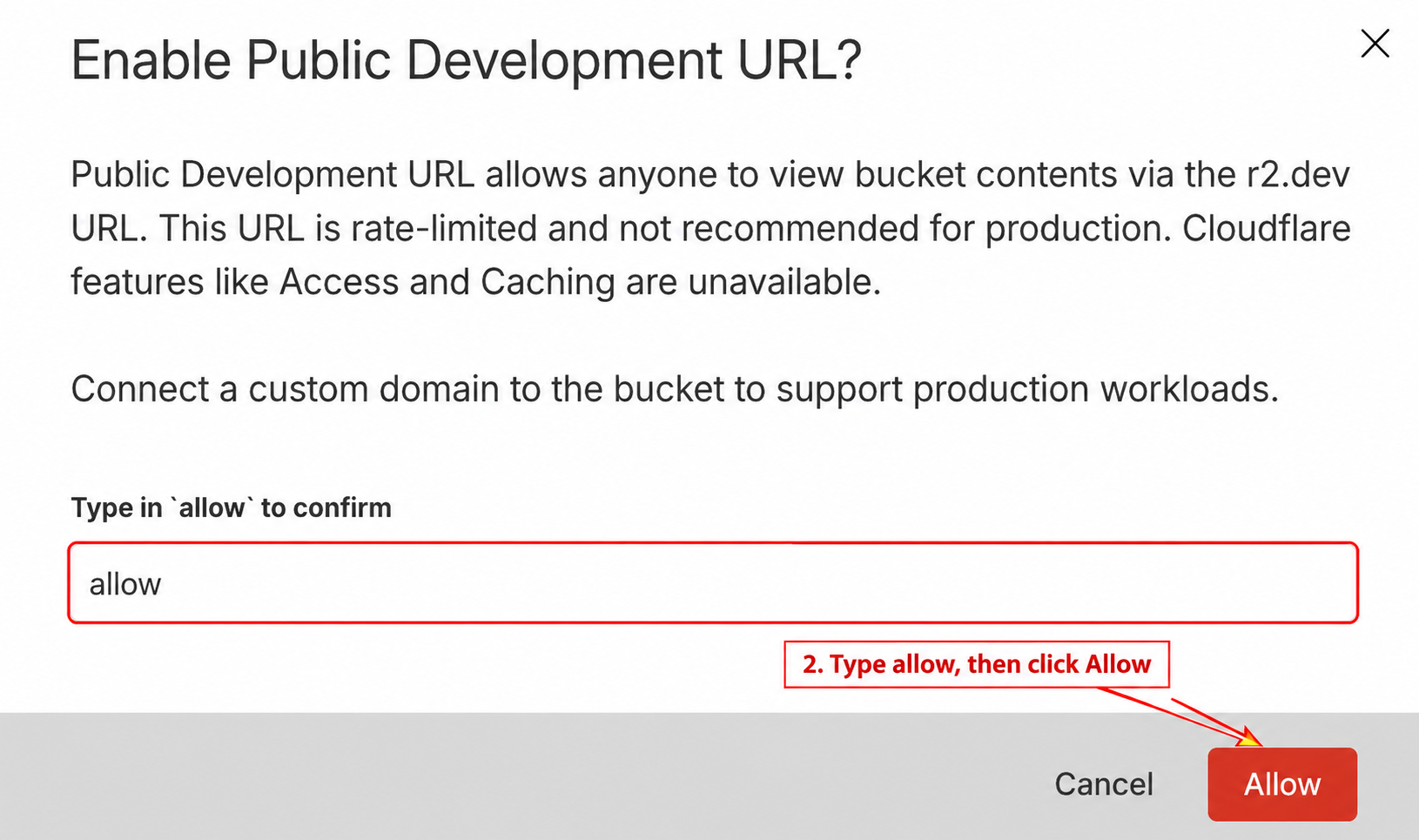
Type allow, then click Allow to confirm.
This makes the uploaded previews accessible to anyone with their link. Use footage you’re comfortable sharing this way. For a personal review page, the free option is practical: Cloudflare gives R2 Standard 10 GB-month of storage, plus a generous number of file requests, and does not charge for internet transfer. The limit is about usage, not a countdown of videos. Keep only the versions you still need and you should remain within the free allowance for a long time.
Cloudflare describes the development address as rate-limited and not suitable for production. This works for testing your own workflow. A lasting client review service needs a custom domain and stronger access controls. Cloudflare explains the options here.
3. Ask Codex to build your review page
Return to the task with your video. Copy the public bucket URL from Cloudflare’s Settings page. The address usually starts with https://pub- and ends with .r2.dev. Give Codex both the bucket name and this URL. The URL tells the review page where to find the videos you upload.
Paste this into Codex and replace the two bracketed lines first:
I already created my Cloudflare R2 bucket. Here are the details:
Bucket name: [PASTE YOUR BUCKET NAME HERE] Public bucket URL: [PASTE YOUR PUBLIC R2 URL HERE]
Starting from this setup, build me a simple video review page for my phone using Cloudflare Pages and this R2 bucket. Walk me through anything I still need to connect. Before uploading, create a smaller phone-friendly MP4 from each full-quality export so playback starts quickly on cellular data. Keep my original and full-quality export safe on my computer. Show each version with a clear name, a video player, a notes box, and Approve and Request changes buttons. Include a Copy decisions button so my feedback returns to this task. Walk me through the Cloudflare login if you need permission, save the settings in this project, and test the page before giving me the link. Upload only the review files we choose.
Codex needs permission to connect to your Cloudflare account. In my setup, the Cloudflare command tool, Wrangler, opens a browser login for you to complete.
Let Codex create the project files and handle the upload commands. You don’t need to name configuration files or copy my account settings. The phone-review skill creates a smaller review copy for playback and leaves the master on the computer. This was the important fix when the first versions were slow or failed to load comfortably on a phone.
Ask Codex to make this behavior reusable across projects during the first-page setup:
Create or update a reusable
phone-reviewskill for my Codex setup. In future video projects, when I ask for a mobile preview, the skill should find the named export, create a smaller phone-friendly MP4 for review, keep the full-quality master separate, upload only the review copy to my existing Cloudflare R2 bucket, update the review page, and return the phone link. Store the bucket and review-page settings so I do not have to rebuild the Cloudflare setup in every chat. Do not upload source footage, credentials, API keys, or unrelated files. If aphone-reviewskill already exists, update and reuse the skill instead of creating a duplicate. Test the result on a phone-sized screen.
After Codex saves the skill, use the same behavior in a different video project or chat by saying:
Use the
phone-reviewskill. Create a mobile preview for this edit, upload the review copy to my existing review page, and give me the link. Keep the full-quality master on my computer.
The bucket URL belongs in the first setup prompt because Codex needs the URL to connect the review page to Cloudflare. After the reusable skill stores the bucket setting, future projects should reuse the same bucket instead of asking you to paste the URL again. You still need to name the video or point Codex to the export you want reviewed.
When the task finishes, open the link on your phone and play the preview. Try over cellular data too, so you know playback works away from your home Wi-Fi.
4. Watch a version and send back your feedback
Keep your first review focused on the cut. Listen for clipped words, awkward joins, or pauses you wanted to keep.
Then review the captions and visuals. Tell Codex exactly what you’d change:
Make the captions smaller. Keep them clear of my face. Hold the chapter title long enough to read, then return to me speaking.
My current page saves decisions in the phone’s browser. After choosing Approve or Request changes, use Copy decisions and paste the result into your Codex conversation. Pressing Approve alone doesn’t send a message to the agent.
The review page handles playback. Sending instructions still uses your phone’s access to the editing conversation, which is a separate connection from Cloudflare.
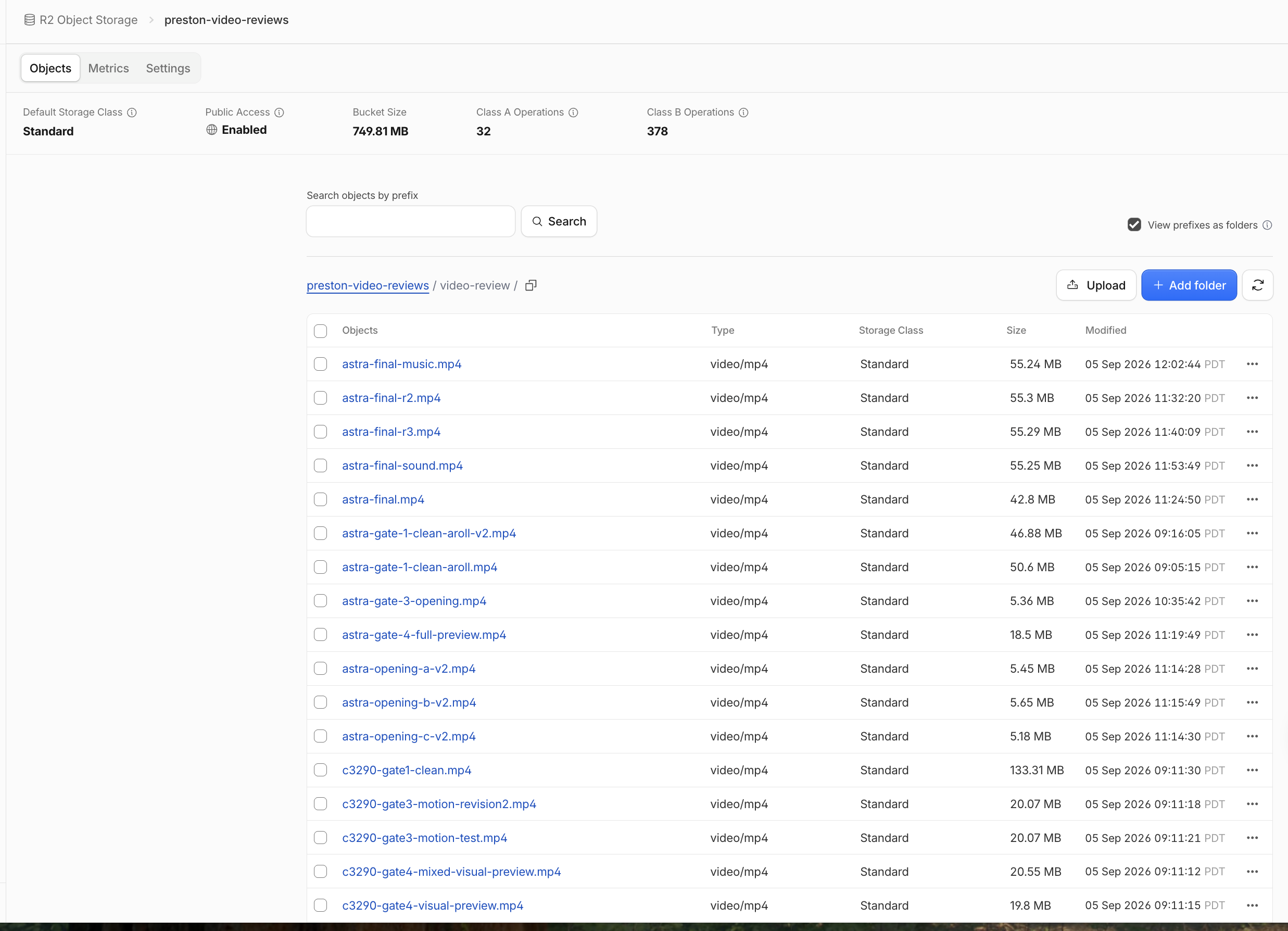
These are separate versions of the edit. Every version takes up storage, including the ones you don’t keep.
5. Keep the finished video and clear old previews
Once you’re happy with the edit, ask Codex to keep the full-quality final file and show you which old review copies are safe to remove.
Check whether any blog post or review page still uses those files before deleting them. Removing a video from R2 breaks links to the deleted file.
For a small workflow, keeping the latest preview and removing unused versions is enough to avoid collecting hundreds of forgotten drafts.
A few questions before you start
How much do I get free?
R2 Standard includes 10 GB-month of storage each month. Think of the allowance as roughly 10 GB kept for the full month, with storage measured over time. The free tier also covers 1 million write/list requests and 10 million read requests. R2 internet transfer is free. Current R2 pricing.
Your bill depends on all your usage, so this isn’t a promise of free service forever. The screenshot from my account showed about 750 MB stored and $0.00 billable usage at the time.
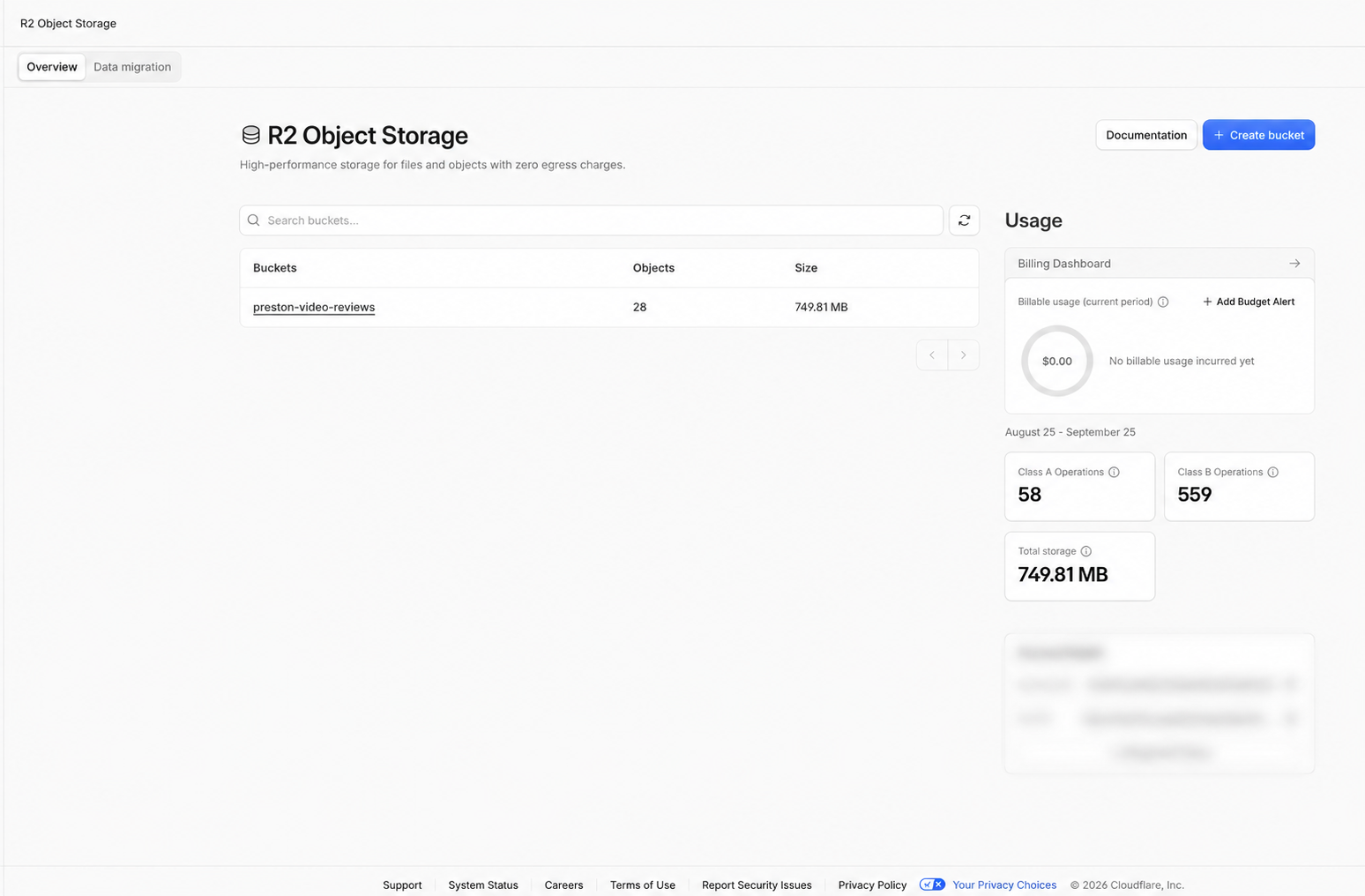
My account had 28 review files using 749.81 MB and still showed $0.00 billable usage. This is the useful mental model: dozens of small review exports fit comfortably inside the free allowance. Large masters and every abandoned version add up, so delete old previews when the project is finished.
How many videos fit inside the free allowance?
As a rough storage-only estimate, 10 GB holds 500 copies at 20 MB each, 200 at 50 MB, or 100 at 100 MB. Leave room for other files and remember: 5 versions of one video count as 5 files.
Do I need a paid plan?
You don’t need a Cloudflare Pro subscription for this basic setup. Pages serves static review pages free, and R2 charges for usage above its free allowance. Codex access is a separate cost.
At today’s Standard rate, storing 20 GB for a full month would cost about $0.15 for storage beyond the free 10 GB, before any extra request charges or other services. Check the rates before starting.
Why use both Pages and R2?
Pages hosts the review screen, while R2 holds the bigger video files. Pages has a 25 MiB limit per file, so many video exports won’t fit there. Pages limits.
Will old previews disappear automatically?
Yes. R2 supports rules for deleting files after a chosen period. Use a separate folder for temporary previews and keep final files or blog embeds outside the deletion rule. Start with manual cleanup until you know which files need to stay. Automatic cleanup rules.
Does this replace an editor?
You still decide what looks good, and some changes need several attempts. I see this as a useful direction for creators who want to learn AI editing and stay involved without doing every adjustment themselves.
Preston
Get more resources from me
- Work with me to build a content system around your business, ideas, and production workflow.
- Join the Melda OS waitlist for the content system I’m building for creators.
- Turn one transcript into a week of content, my related walkthrough with a free starter kit.
Get a new build-with-AI guide every week
Weekly playbooks on prompting, agents, and content systems — free.
You're in. First email lands shortly.