Instagram Comments to Email Leads With ManyChat and Claude or ChatGPT
Read Time: 9 Minutes
I used ManyChat to turn Instagram comments into nearly 12,000 email leads.
Someone comments a keyword on a post, opens the DM, enters their email, and gets the resource without leaving Instagram. Kit adds the email to the right form inside the automation. There is no separate landing page to open and no second form to fill out.
This is the one page I send people to whenever I make a video about ManyChat. It has 2 levels.
Level 1 is the starter automation. It collects the email inside the DM and delivers 1 resource. You can set it up by following this guide, without learning the intricacies of ManyChat, because an AI builds it for you from my template after you answer 4 questions.
Level 2 is more advanced. It adds an AI step that reads each person’s reply and sends them the right offer or resource. You can run it with Claude or ChatGPT. I happen to demo it with Claude in the tutorial video.
Start with Level 1 if you’ve never set up ManyChat. Move to Level 2 once the starter version is live and collecting emails.
Level 1: Build the starter automation with your voice
The whole point of Level 1 is to collect the email inside the DM.
Most creators send people to a separate landing page to enter their email. Every redirect gives someone another chance to leave. When the email question happens in the same Instagram conversation where they asked for the resource, far more people finish.
You also don’t need to learn ManyChat to set this up. You install my template, answer 4 questions, and an AI builds your version while you watch.
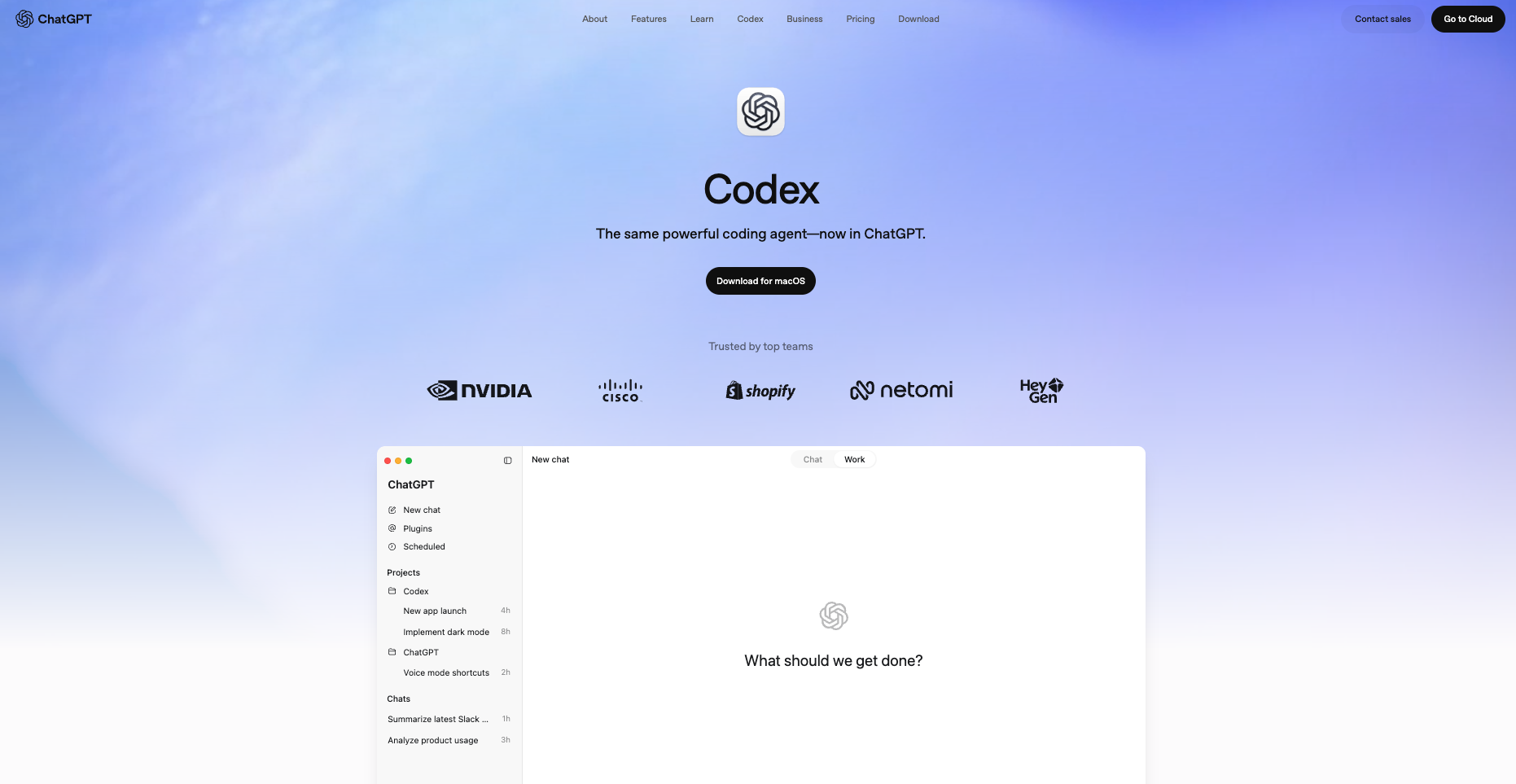
I run this step in the Codex app with GPT Sol (High) or GPT Astra. Both use computer use, which means the AI controls a real browser the way you would, clicking buttons, typing into fields, and reading what’s on the screen. As of this write-up, they do that more reliably than Claude, so that’s what I recommend for Level 1.
On September 18, I rebuilt my setup around one voice command:
Build my ManyChat automation.
The skill asks me 4 questions at once. GPT then opens ManyChat, copies my template, and customizes both email paths while I watch.
What you need for Level 1
- The Codex desktop app with GPT Sol (High) or GPT Astra and browser access
- A ManyChat Pro account connected to your Instagram professional account
- Kit connected to ManyChat, plus a published Kit form
- A public link and image for the resource you want to deliver
ManyChat’s Kit integration collects the email in the DM and adds the contact to the form you choose. This removes the extra landing-page step where people often drop off.
Copy the starter template and prompt
Open my simplified ManyChat template and install the template in the account connected to your Instagram. ManyChat has a short template installation guide if you have never installed one.
If you want the reusable one-command version, download the ManyChat Build skill. Add the ZIP to a new Codex task and ask Codex to install the skill.
Then say:
Build my ManyChat automation.
If you want to run the setup without installing the skill, paste this prompt into a new Codex task using GPT Sol (High) or GPT Astra:
Use browser control to build a customized Instagram comment-to-DM automation from this ManyChat template:
https://app.manychat.com/flowPlayerPage?share_hash=5108110_2381899417e1fc7ba2917240a5c3bc609b6d2ead

Ask me these four questions in one numbered message. Wait for one reply with all four answers:
1. What's the keyword people should comment to trigger the automation?
2. What's the resource you'll give them? Ask for a public link, then read the page.
3. What image of the free resource should you attach? Ask me to upload the image.
4. Which Kit form should the automation use? Ask for the Kit form link.

After I answer, duplicate the template and leave the source unchanged. Rename the copy "KEYWORD IG Automation" using my keyword. Set the Instagram trigger to All Posts or Reels with only my keyword, but leave the trigger off.

Rewrite the public reply, opening DM, email question, reminder, and both delivery paths for my resource. Replace both card images, titles, and links. Set the Kit action to the exact form I gave you. Save, reload, preview both email paths, open the resource buttons, and verify no text, image, URL, keyword, or Kit form from the source remains.

Leave the automation as a draft. Show me the direct edit link and a final readback. Do not take the automation live until I approve the draft.
The 4 answers give GPT the information needed to personalize the flow. It reads your resource page for the title and message, uses your image in both delivery cards, and sends new emails to the Kit form you picked.
Once this version is live, you have a working lead collector. Level 2 is where each lead starts getting the right offer for their situation.
Level 2: Have a conversation in the DM and customize the offer
Level 2 is for you if you want to have real conversations in your DMs and match your offer to each person.
Think of a waiter. A bad restaurant hands every customer the same dish. A good waiter asks what you’re in the mood for, then brings the thing you’ll want. Level 1 is the first restaurant. Level 2 is the waiter.
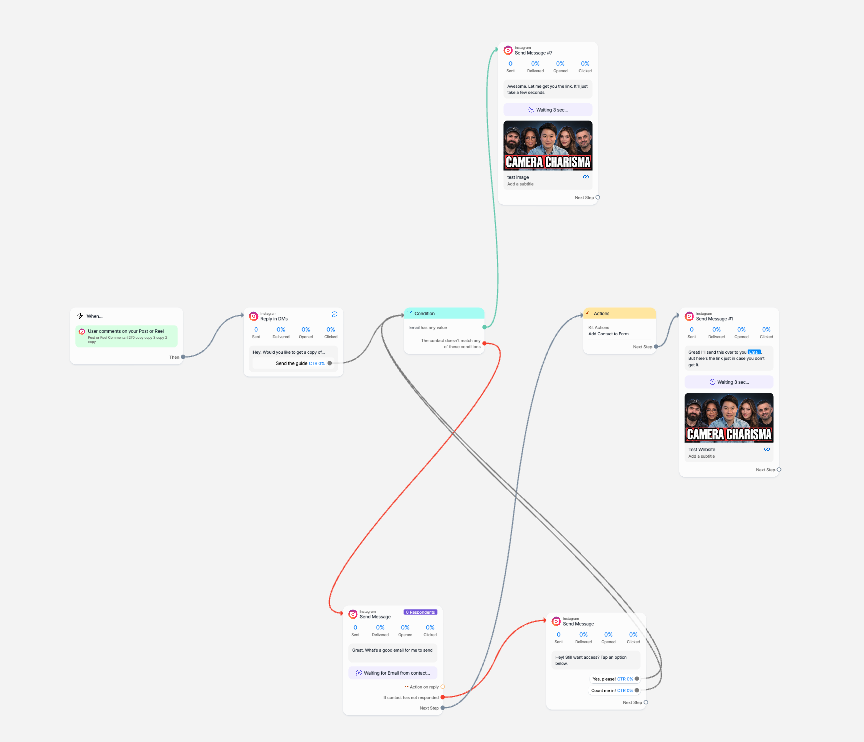
The full automation collects the email inside the DM, adds the person to Kit, asks what they need help with, and uses an AI model to read the answer and send the right follow-up offer or resource. You can connect ChatGPT or Claude’s API for this step. I demo it with Claude, so the template and video below use Claude, but the routing idea is the same with either.
This level is more advanced than Level 1. There are more branches, more places to test, and an API key to set up. Watch the tutorial first.
You can copy the full automation and use the downloadable ChatGPT Work skill below to customize it for your business. The skill interviews you first. Then it updates the keyword, image, free resource, Kit form, tags, Claude instructions, and every routed link in your own ManyChat account.
The original template stays untouched. Your version is built from a duplicate and waits for your review before anything goes live.
Watch the tutorial before you copy the template
I highly recommend watching the full YouTube tutorial above before you install or edit the template. This is a complex automation with two email paths, Kit actions, a Claude classifier, several conditions, tags, and different resource links. The template gives you the full structure. The video shows how those pieces work together and what you need to check before you turn anything on.
Going through the video will help you understand why the skill asks about your Kit form, tags, classification categories, resource image, links, and fallback. Once you see how the flow branches, each interview question will make sense and you will know what to look for when ChatGPT shows you the finished automation.
What you need for Level 2
You need a ManyChat Pro account with your Instagram professional account connected. The shared automation uses paid features, so a free ManyChat account will not run the full flow.
You also need Kit connected to ManyChat, plus the exact Kit form and tags you want the automation to use. Create those before the interview if they do not exist yet.
Claude handles the topic classification inside ManyChat. Create an API key through the Anthropic Console and add billing. Enter the key directly inside ManyChat under Settings, Integrations, Claude. Do not paste the key into ChatGPT or upload it with the skill.
To have ChatGPT control the browser and customize the automation, use ChatGPT Work with a Plus, Pro, or Business subscription.
Those are the requirements I would state at the start of the video: ManyChat Pro, an Anthropic API key, Kit, and ChatGPT Plus, Pro, or Business.
Download the full template and skill
First, open my shared ManyChat automation template and save it to the correct ManyChat account. ManyChat explains the normal template install flow in its official installation guide.
Then download the ManyChat Template Customizer skill.
Start a new ChatGPT Work task, upload the ZIP, and use this prompt:
Run the ManyChat Template Customizer skill. Interview me one question at a time, then customize Preston Chin’s shared template in my signed-in ManyChat account. Keep the source template unchanged. Do not publish anything until I approve the final review.
The skill will ask you to attach an image of your free resource. It will also ask for your keyword, resource link, Kit form, lead tag, topic question, classification categories, one Kit tag and resource link for each category, and the fallback for replies Claude cannot classify.
What the interview changes
The template has one main resource and several follow-up routes. The main resource is what someone requested by commenting on your post. After delivery, the automation asks one question. Claude classifies the reply and sends a second resource based on the person’s answer.
For each route, give the skill four things: what the category means, the exact label Claude should return, the Kit tag to apply, and the link the person should receive. The skill turns those answers into a strict Claude system prompt and the matching ManyChat conditions.
The skill also rewrites the public comment replies and DMs in your voice. Give it one example of copy you like and any phrases you never want it to use.
The duplicate step that prevents most mistakes
Keep the imported template as your clean source. The skill duplicates it into your main automations folder and names each working copy with the date plus the next post number, such as 8.25.26 Post 1 or 8.25.26 Post 2.
ManyChat sometimes opens a duplicate in the published, read-only view. If you see Edit Automation in the upper-right corner or an Edit link in the published-version banner, click it before changing the flow. The editable URL ends in /edit.
A duplicate can also inherit the source keyword and post binding. The skill checks and clears that trigger before it clicks Update. If the trigger cannot be inspected, the skill stops and leaves the changes unpublished. That prevents a new automation from responding to comments meant for the old one.
What to review before you publish
ChatGPT will show you the final automation name, trigger scope, keyword variants, main resource image and URL, Kit form, lead tag, topic question, every classification route, and the fallback.
Test the path for someone whose email is already known and someone who needs to enter an email. Then test one reply for every Claude category and one answer that should use the fallback. Open every resource button. Check the Kit tags on the test contacts.
Only take the automation live after those checks pass. If your Instagram post is not live yet, leave the trigger off. Once the post is published, bind the automation to that specific post, save it, reload it, and confirm the same post is still selected.
What the full workflow handles
- A comment keyword starts the DM
- The DM collects a missing email and adds the contact to Kit
- The first requested resource goes out with your image and link
- Claude classifies the person’s answer to one topic question
- ManyChat applies the matching Kit tag and sends the right follow-up resource
Questions? Hit reply. I read every message I get.
Preston
Get more resources from me
- Work with me to build an AI workflow around your business.
- Join the Melda OS waitlist for the content system I’m building for creators.
Get a new build-with-AI guide every week
Weekly playbooks on prompting, agents, and content systems — free.
You're in. First email lands shortly.